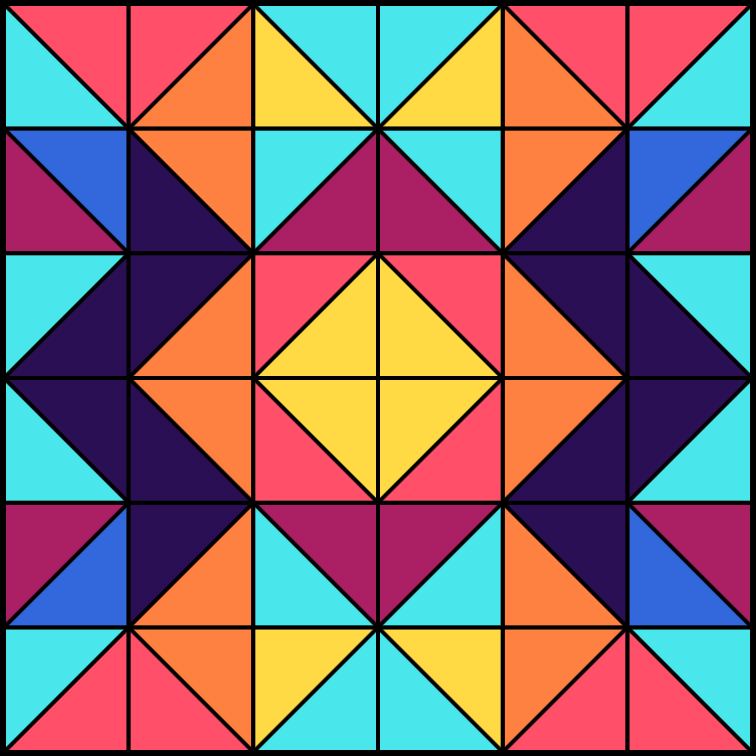
Interactive Quilt Pattern Generator
Explore a browser-based quilt design tool that lets you experiment with color palettes, grid sizes, mirroring, and borders to create custom Half-Square Triangle (HST) quilt layouts. You can design directly in your browser and export the result as a PNG for reference or printing.
Key Features
- Color Palettes: Choose from options like Basic, Warm, Cool, Holo, Twilight, Cold, and Futuristic.
- Custom Grid Size: Adjust the quilt grid to explore different block counts and compositions.
- Mirrored Layouts: Enable mirroring so all four quadrants reflect the top-left design.
- Border Controls: Set border line width (in pixels) and toggle between black or white borders.
- One-Click Actions: Generate new patterns, randomize colors, and save your design as a PNG image.
Quick Instructions
- Change Orientation: Left-click any tile to cycle its orientation through square and HST directions (L / U / R / D / F).
- Change Color: Left-click a color swatch to select it, then click a triangle in a tile to apply the color. Click the swatch again to deselect.
- Mirror Pattern: Turn on mirroring so the other three quadrants automatically reflect the top-left design.
- Change Pattern Size: Adjust the grid size for the top-left quadrant (for example, 5 creates a 5×5 quadrant and a 10×10 full quilt when mirrored).
- Apply Border Lines: Set the border width above 0 px to show border lines around each tile.
- Border Color: Choose black or white for the border line color.




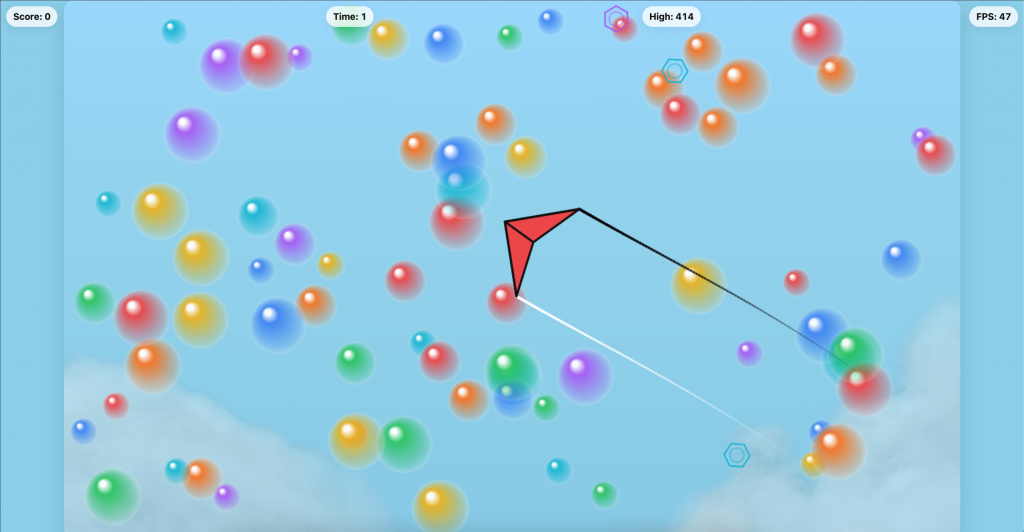
Lazer Kites
Lazer Kites is a fast-paced skill game built entirely in the browser. You control a flying kite that moves forward constantly while steering, firing lasers, collecting power-ups, and popping floating targets. The game runs smoothly on desktop and mobile and features optional aim-assist, power-ups, dynamic clouds, bubble targets, varying wind speeds, and a persistent high-score system stored locally on your device.
Key Features
- Continuous Flight: The kite accelerates forward automatically, creating constant forward motion.
- Responsive Steering: Use A/D or ◀/▶ keys (or mobile touch controls) to turn smoothly.
- Laser Combat: Fire with Space or tap to pop targets scattered across the sky.
- Dynamic Targets: Small, medium, and large bubbles drift across the arena, each worth different points.
- Power-Ups: Collect Slow-Time, Fast-Fire, or Aim-Assist hexagons to temporarily boost performance.
- High Score Memory: Your highest score is automatically saved in your browser using localStorage.
- Mobile-Friendly: Includes touch-based steering and firing controls.
- Performance-Optimized: Smart canvas scaling and devicePixelRatio management for smooth gameplay.
How to Play
- Start the Game: Press Space or tap the screen to begin a new round.
- Steer: Use A/D or the ◀/▶ keys. On mobile, tap Left/Right.
- Fire: Press Space or tap the Fire button.
- Pop Targets: Aim your laser beam at targets. Smaller targets are worth more points.
- Collect Power-Ups: Fly over blue (Slow-Time), orange (Fast-Fire), or purple (Aim-Assist) hexagons to activate bonuses for 8 seconds.
- Stay in Motion: The kite constantly moves forward and wraps around screen edges to stay in play.
- Beat the Clock: You have 60 seconds to score as many points as possible.
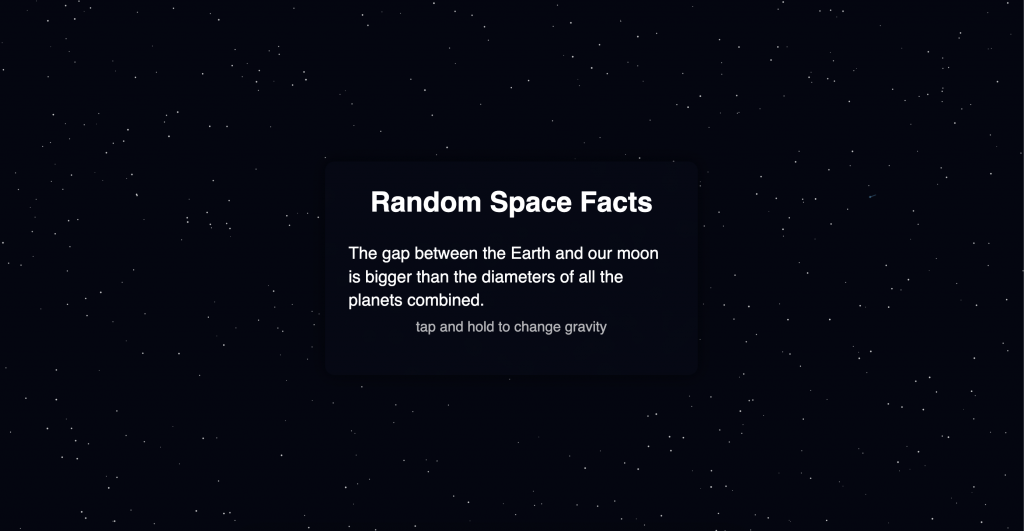
Random Space Facts
Random Space Facts is an interactive webpage that displays a new fact about our universe, planets, and the broader cosmos every time the user taps, clicks, or interacts with the screen. The content panel sits above a fully dynamic p5.js “gravity ripple” starfield that responds to touch or mouse input, creating an immersive space-themed background on both desktop and mobile devices.
Users can trigger fact changes by tapping or clicking anywhere on the screen. Touching and holding activates a gravity well that pulls nearby stars toward the interaction point. Releasing triggers a ripple effect that gently pushes the starfield outward. The experience scales automatically to any screen size.
Key Features
- Randomized Space Facts: Each interaction updates the display with one of dozens of curated facts about planets, stars, and the broader universe.
- Interactive Gravity Field: Clicking, tapping, or touching creates a temporary gravity point that pulls stars toward your finger or cursor.
- Ripple Release Effect: Lifting your finger or releasing the mouse produces an expanding ripple that subtly pushes stars away.
- Shooting Stars: Procedurally generated meteor streaks appear occasionally, adding depth and movement to the background.
- Mobile-Optimized: The interface detects mobile devices and adjusts star density and interaction handling automatically.
- Responsive Scaling: The p5.js canvas resizes with the browser window to maintain full-screen coverage.
- Blurred Glass UI Panel: The text container uses a translucent, blurred “glassmorphism” style to stay readable over the animated starfield.
How It Works
- Change the Fact: Tap or click anywhere to generate a new random space fact.
- Create Gravity: Hold your finger or mouse button to pull nearby stars toward the interaction point.
- Release to Ripple: Let go to produce an expanding ripple that briefly disturbs the starfield.
- Background Animation: Shooting stars, drifting stars, and ambient motion continue automatically in the background.
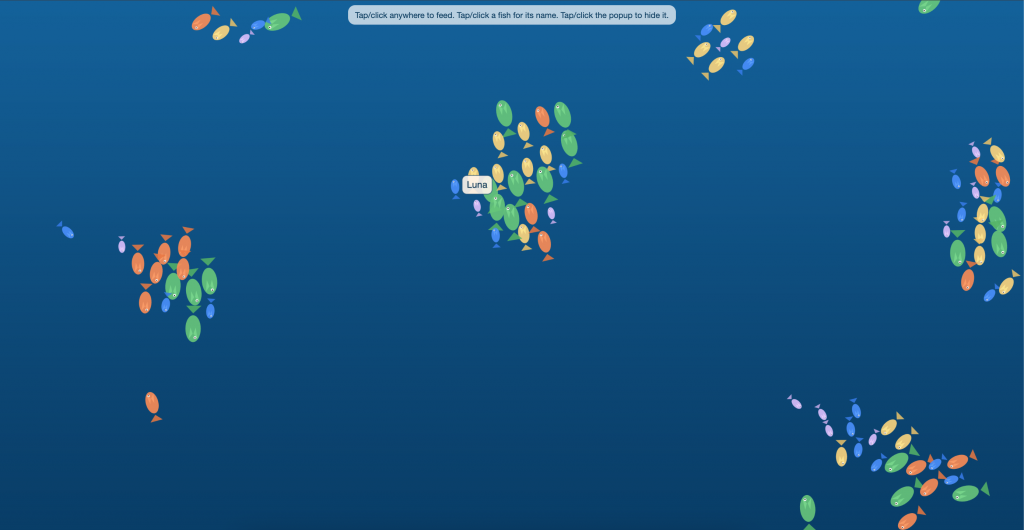
Interactive Fish Schooling Name Tank
The Fish Schooling Name Tank is an interactive, full-screen p5.js experience where colorful fish swim, school, and feed in a dynamic underwater scene. Each fish has its own unique name drawn from a large pool of ocean-inspired names, and users can reveal these names by tapping or clicking on individual fish.
The tank responds to user interaction in two ways: tapping or clicking on the water surface creates a temporary “feeding spot” with drifting pebbles that attract nearby fish into spiraling schools, and tapping or clicking directly on a fish opens a floating name popup. Tapping or clicking the popup itself hides it again, keeping the screen clear as the fish continue to swim and re-form their schools.
Key Features
- Named Fish: Each fish is assigned a unique name from an extensive list of ocean- and water-themed names, ensuring minimal repetition while the tank fills with personality.
- Schooling Behavior: Fish are grouped by size and color into schools that align, cohere, and separate using flocking rules, creating natural-looking group motion.
- Interactive Feeding Spots: Tapping or clicking the water creates a feeding spot with animated pebbles that draw fish into a swirling, circling pattern before they drift back into free swim.
- Name Popups: Clicking or tapping a fish opens a soft, rounded popup hovering above it, displaying the fish’s name on a readable card styled like a speech bubble.
- Full-Screen Responsive Canvas: The p5.js canvas automatically resizes with the browser window and adjusts fish count based on screen area to maintain performance and density.
- Mobile-Aware Motion: The simulation detects mobile devices and subtly scales speed and forces to keep the experience smooth on phones and tablets.
- Layered Ocean Background: A gradient water background and subtle motion cues create the impression of looking down into a deep tank from above.
How It Works
- Feed the Fish: Tap or click anywhere that is not on a fish to create a feeding spot. Nearby fish will curve toward the spot, spiral around it, and briefly grow as they “eat.”
- Reveal a Name: Tap or click directly on a fish to open its name popup. Only one fish name is shown at a time to keep the screen clean.
- Hide the Popup: Tap or click the popup itself to hide the name and return to an unobstructed view of the tank.
- Watch the Schools: Fish continuously align with neighbors of similar size and color, forming fluid, shifting schools across the tank.
- Resize the Window: The tank recalculates canvas size and fish count to fit any desktop or mobile screen, preserving a balanced, full-screen experience.
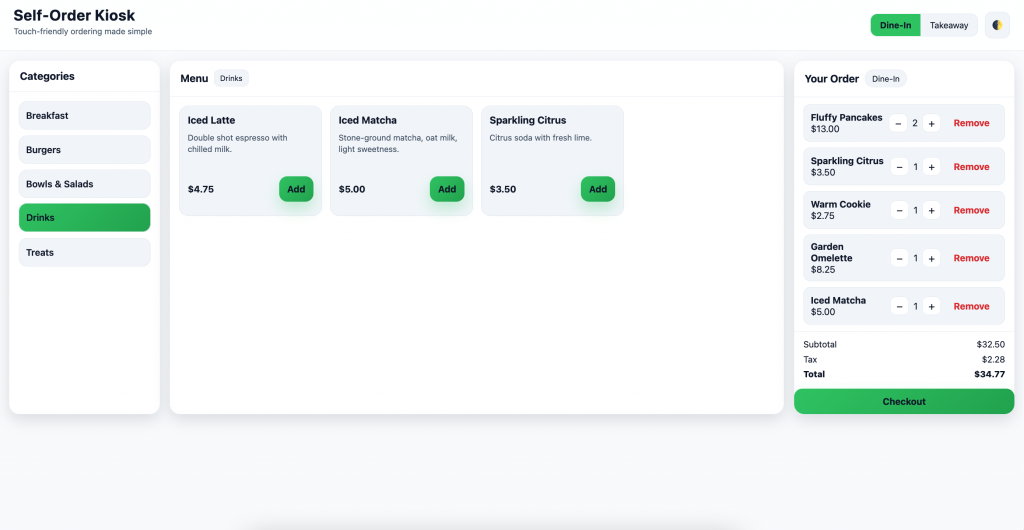
Interactive Self-Order Kiosk Demo
The Self-Order Kiosk Demo is a touch-friendly, full-screen ordering interface built with HTML, CSS, and vanilla JavaScript. It recreates the feel of a modern quick-service restaurant kiosk, with large tap targets, clear visual hierarchy, and a responsive three-panel layout that works across desktop, tablet, and mobile screens.
Guests browse menu categories, add items to an order with a single tap, and review quantities and totals in a live order summary panel. The kiosk supports both Dine-In and Takeaway modes, includes automatic tax calculation, and presents a checkout flow with a review step, allowing users to confirm or adjust their selections before placing the order.
Key Features
- Three-Panel Kiosk Layout: A left-hand category rail, central menu grid, and right-hand order summary panel mirror real-world kiosk interfaces and keep navigation intuitive.
- Dynamic Categories & Menu Items: Categories and items are populated dynamically into a grid of cards, each showing the item name, short description, and price with a prominent “Add” button.
- Live Order Summary: The order panel updates in real time with item names, quantities, and line totals, plus running subtotal, tax, and total values.
- Quantity Controls: Simple plus/minus buttons let users increase or decrease item quantities without leaving the order view, with items removed automatically when quantity reaches zero.
- Dine-In vs. Takeaway Toggle: A pill-style toggle at the top of the screen lets guests switch between Dine-In and Takeaway, updating the order type badge in the summary panel.
- Light/Dark Theme Toggle: A theme button in the header instantly flips between light and dark modes, adjusting background, surface, and text colors for different environments.
- Responsive & Mobile-Optimized: On tablets and phones the layout collapses into two or one columns, with a fixed bottom “Checkout” bar that keeps the total and call-to-action always visible.
- Modal Checkout Experience: Tapping Checkout opens a centered modal overlay where users can review their order, see the final total, and complete or cancel the transaction.
- Accessible Markup: ARIA labels, roles, and clear focus targets are used throughout to improve screen reader and keyboard navigation behavior.
How It Works
- Select an Order Type: Use the Dine-In / Takeaway toggle in the header to choose how the order will be served. The current selection is reflected in a pill inside the order panel.
- Choose a Category: Tap a category card on the left to filter the menu. The active category is highlighted, and a label above the menu grid shows what you are currently browsing.
- Add Items to the Order: In the menu grid, tap the button on any item card to add it to your order. The order summary updates immediately with the item, quantity, and price.
- Adjust Quantities: In the order panel, use the plus and minus buttons to change quantities. Totals recalculate automatically as you make adjustments.
- Review and Checkout: When you are ready, tap the Checkout button (or the bottom checkout bar on mobile) to open the review modal. Confirm the total, then place the order or close the modal to continue editing.
- Start a New Order: After checkout, the interface can be reset to an empty order state so the next guest can begin a fresh order on the same kiosk.

North Carolina Budget Flow Visualizer
The North Carolina Budget Flow Visualizer is an interactive tool that helps you estimate federal and North Carolina taxes based on your gross salary, build a monthly budget plan, and visualize cash flow — including spending, savings, and projections — through live charts and a 5-year forecast.
Users enter their annual gross salary and select the applicable tax year (2025 with a 4.25% NC rate or a future year with a 3.99% NC rate), then update the budget. The tool computes a monthly budget flow, an annual summary, and lets users define custom spending categories with optional minimum and maximum allocation percentages.
The Visualizer also features a 5-Year Savings Projection module that accounts for both personal retirement contributions (e.g., 401(k)) and employer matching: for the first 4% of your contribution, the employer match is applied dollar-for-dollar. The output includes monthly savings, projected balance over 5 years (both retirement and unrestricted savings), and 401(k) breakdown.
Key Features
- Income & Tax Estimation: Input your gross annual salary and select the correct NC tax year to automatically apply state tax rates. The tool calculates net income and after-tax cash flow.
- Budget Planning & Allocation: Define custom spending or savings categories, and optionally set minimum and maximum allocation percentages to guide your monthly budget.
- Monthly & Annual Flow Charts: See how your income is distributed across categories month by month or view aggregated annual flows for a broader financial overview.
- 5-Year Savings Projection: Forecast retirement savings (including employer 401(k) match) and unrestricted savings over 5 years based on your contribution levels — useful for long-term planning.
- Budget Score & Cap Guidelines: The tool provides recommended maximum allocation percentages to help guard against overspending and maintain healthy budgeting discipline.
- Customizable & Flexible: Add or remove categories as needed, adjust allocation percentages, and re-run projections to explore different budgeting scenarios.
- Educational Use Only: The visualizer is intended for illustration and education — it does not substitute for professional financial, tax, or legal advice.
How to Use
- Enter Salary & Select Tax Year: Provide your gross annual salary and choose the correct tax year to reflect proper NC tax rates. Click “Update Budget.”
- Review Monthly & Annual Flows: Examine how your net income is distributed monthly and annually across categories, savings, and expenses.
- Add Custom Categories: If desired, create new spending or saving categories — optionally specifying minimum and maximum allocation percentages — then allocate a portion of your net income accordingly.
- Check 5-Year Savings Projection: View how your retirement (with employer match) and unrestricted savings could grow over five years under your current contribution plan.
- Use Budget Score & Caps: Compare your allocations against recommended caps to gauge whether your budget plan remains within healthy limits.
- Iterate & Adjust: Modify salary, contribution rate, or category allocations to experiment with different financial scenarios and plan accordingly.
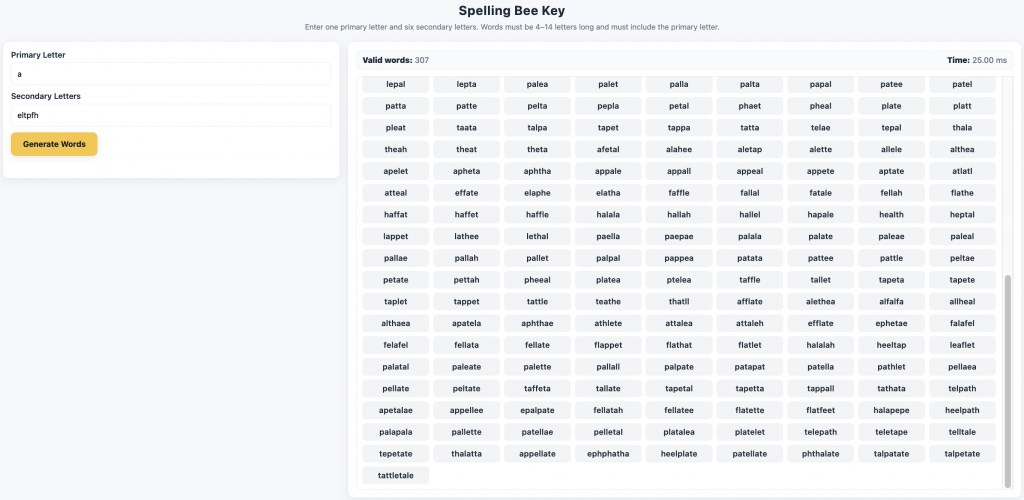
Spelling Bee Key Word Generator
Spelling Bee Key is a fast, browser-based word generator inspired by spelling puzzle games that require you to form valid words using seven letters. The tool is optimized for mobile and desktop, runs entirely client-side for speed, and checks generated words against a full local dictionary file for instant validation.
Users provide one primary letter — which must appear in every generated word — along with six additional secondary letters. The generator then computes every possible word between 4 and 14 letters long, filters out invalid combinations, and returns only real English words found in the included dictionary file.
The app uses a locally stored dictionary file (WordList.rtf) to ensure extremely fast lookups without requiring an internet connection, making it ideal for gameplay assistance, word-puzzle exploration, language study, and rapid vocabulary generation.
Key Features
- Seven-Letter Input System: One required primary letter plus six secondary letters form the puzzle core, replicating spelling-challenge rules.
- Full Dictionary Validation: Every candidate word is checked against WordList.rtf to ensure authenticity and prevent non-word outputs.
- Length Filtering: Only words between 4 and 14 characters are considered, eliminating trivial or overly long combinations.
- Client-Side Speed: All logic runs in the browser using optimized JavaScript for fast performance on both mobile and desktop devices.
- Responsive Layout: The interface adapts to screens of all sizes, making it easy to input letters and scroll results on any device.
- Simple, Focused Interface: Designed to minimize distractions and surface valid word results quickly and cleanly.
How to Use
- Enter the Primary Letter: Type the required letter that must appear in every generated word.
- Add Six Secondary Letters: Enter the remaining letters used to form the full allowed character set.
- Generate Words: Tap the generate button to produce all valid English words that meet the game constraints.
- Review and Scroll: Browse the results list, which dynamically fills with all dictionary-verified matches.
- Try New Combinations: Adjust letters and re-run the generator to explore different puzzle setups.

Snow Steve Snowman Demo
The SnowSteve Snowman Demo is a playful browser-based application where users keep a snowman from melting by rapidly throwing snowballs at it. Built with p5.js, the game includes animated snowfall, hit sound effects, background music, and a shrinking snowman mechanic that increases urgency and makes the experience both fun and challenging.
As the snowman gradually melts over time, players must tap or click to launch snowballs before the snowman disappears completely. Each hit slows the melt rate, and randomized impact sound effects keep gameplay lively. The interface is mobile-friendly, responsive, and optimized for fast frame rendering on both phones and desktops.
Background music loops during gameplay, and players can mute it at any time using the on-screen audio toggle. Snowflakes fall continuously, adding movement and atmosphere while the snowman’s size dynamically updates based on player performance.
Key Features
- Shrinking Snowman Mechanic: The snowman slowly melts unless struck by snowballs, creating a light time-pressure gameplay loop.
- Animated Snowfall: Continuous snowflake animations enhance visual depth and seasonal feel.
- Randomized Hit Sound Effects: Five impact sounds (snowhit1–snowhit5) rotate randomly to avoid repetition.
- Background Music with Mute Control: A looping track plays during gameplay, with a user-controlled mute button.
- Responsive Design: Fully playable on both desktop and mobile, with touch or mouse controls.
- Performance-Optimized p5.js Rendering: Designed for smooth frame rates even on lower-power devices.
How to Play
- Open the Demo: Launch the SnowSteve game using the button below.
- Throw Snowballs: Tap or click anywhere on the snowman to hit it with snowballs.
- Stop the Melt: Each hit replenishes some of the snowman’s size; missing too long will cause it to shrink away.
- Watch FPS & Stats: A live stats bar shows frame rate and key gameplay metrics.
- Adjust Sound: Use the mute button to toggle background music at any time.
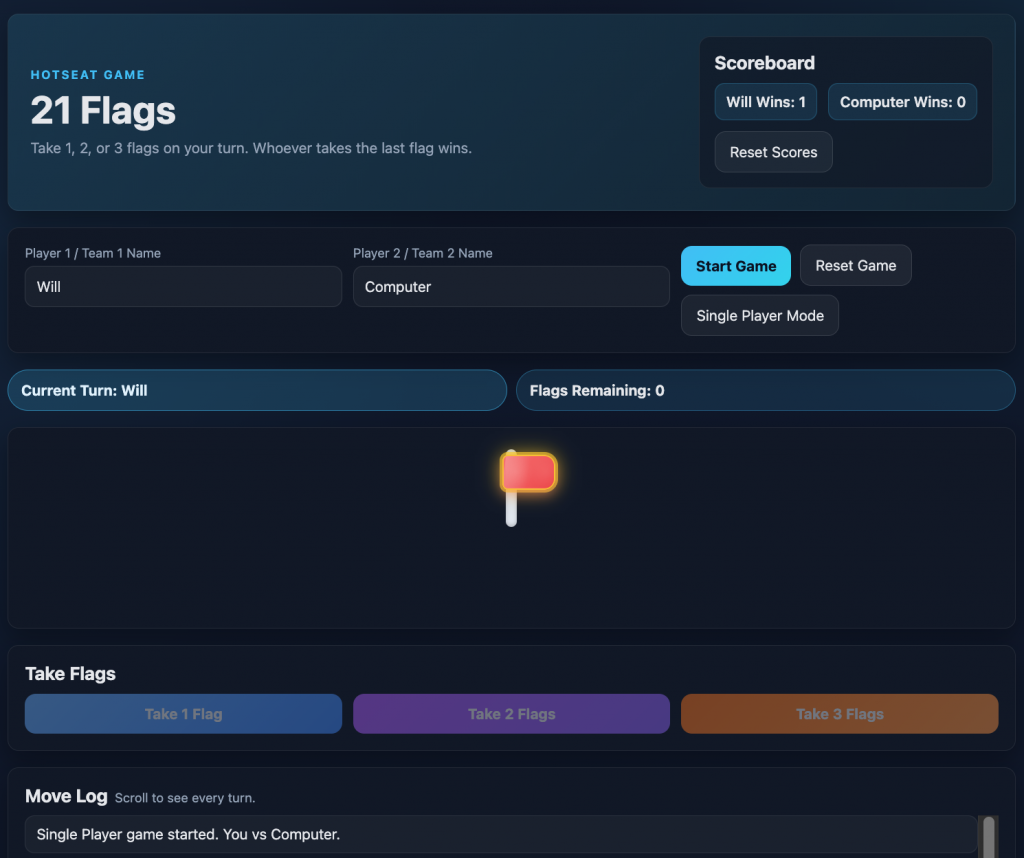
21 Flags Strategy Game
The 21 Flags Strategy Game is a browser-based, turn-taking game where players (or teams) compete to take the last flag. On each turn, a player must take exactly 1, 2, or 3 flags. The player who takes the final flag wins the round.
The demo is designed for quick, repeatable play: enter custom Player/Team names, start or reset a match instantly, and track wins in the built-in scoreboard across multiple rounds.
A scrolling move log records every turn so players can review decisions, discuss strategy, and verify gameplay. The interface is responsive and works cleanly on both desktop and mobile (mouse or touch).
Key Features
- Classic 21 Flags Rules: Take 1–3 flags per turn; take the last flag to win.
- Hotseat Multiplayer: Two players or two teams can play locally on the same device.
- Single Player Mode: Toggle a one-player experience for quick practice rounds.
- Scoreboard Tracking: Persistent win counts for Player 1 and Player 2, with a reset option.
- Custom Player/Team Names: Rename players/teams for group play or classroom demos.
- Move Log: Scrollable turn-by-turn history for transparency and strategy review.
- Responsive Layout: Optimized for both desktop and mobile screens with clear action buttons.
How to Play
- Open the Demo: Launch the game using the button below.
- Set Player/Team Names: Enter names for Player 1 / Team 1 and Player 2 / Team 2.
- Start the Match: Click Start Game to begin with 21 flags.
- Take Flags: On your turn, choose Take 1, Take 2, or Take 3.
- Win the Round: Take the last remaining flag to win; the scoreboard updates automatically.
- Review Strategy: Use the Move Log to replay the round and analyze decisions.
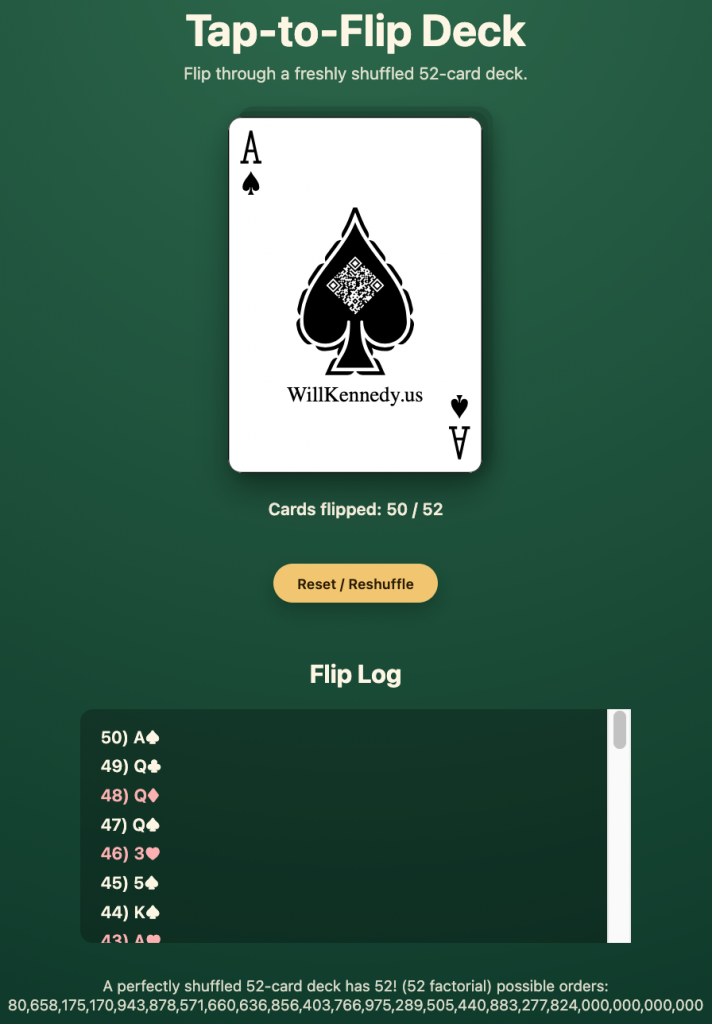
Tap-to-Flip Deck
The Tap-to-Flip Deck is a lightweight, browser-based demo that simulates flipping through a freshly shuffled 52-card deck. Each tap reveals the next card in sequence, letting you move through the deck one card at a time.
A live counter shows how many cards have been flipped (out of 52), and a scrolling Flip Log records the full history in order, so you can review every card revealed so far without losing your place.
Use the Reset / Reshuffle control to instantly generate a new randomized deck order and start again from card #1. The interface is responsive and works cleanly on both desktop and mobile (mouse or touch).
Key Features
- Fresh Shuffle on Reset: Reshuffle the full 52-card deck at any time and restart the sequence.
- One-Tap Card Flips: Reveal the next card with a single click/tap for fast, repeatable use.
- Progress Counter: Track how many cards have been flipped (e.g., 0 / 52 up to 52 / 52).
- Flip Log: Scrollable, ordered history of every revealed card for transparency and review.
- Mobile + Desktop Friendly: Responsive layout with touch-friendly controls.
- 52! Fact Note: Includes the scale of possible deck permutations for context.
How to Use
- Open the Demo: Launch the deck using the button below.
- Flip Next Card: Tap Flip next card to reveal the next card in the shuffled deck.
- Watch Progress: Check the Cards flipped counter as you move through the deck.
- Review History: Use the Flip Log to see every card revealed in order.
- Reset / Reshuffle: Tap Reset / Reshuffle to start a brand-new randomized deck.